
- Verify
- Getting Started
- Set up the Dashboard
Getting Started
Set up the Dashboard
Create a tenant, register an application, and generate client credentials.
Before you can integrate Idura Verify into your application, you need to configure your environment in the Idura Dashboard. This takes about two minutes and will give you the client credentials required to build your own eID-based login flows.
Create a tenant
A tenant represents your organization's isolated environment at Idura.
- Sign up for a free test account to access the Idura Dashboard.
- You will be prompted to create your first tenant. You can change the tenant name at any time after creation in the Dashboard Settings.
Risk-free testing: Your free account includes a sandbox environment with unlimited test logins, allowing you to build and test your integration without any obligations or unexpected costs.
Register a domain
Everything you do with Idura requires a domain to route your authentication requests.
- Go to the Domains tab in your dashboard.
- Click Register domain.
- Select your domain type. We recommend starting with a standard
.test.idura.brokerdomain for your local development and testing. - Type your domain name in the Domain settings field. If your company name is Acme Corp, your first domain may look somethig like
acme-corp.test.idura.broker.
Register an application
An application represents the software you are building (e.g., your React frontend or Node.js backend). Registering an application generates the client credentials you will use in your code to configure your software to communicate with Idura Verify.
- Add a new login application from the Applications tab of your dashboard.
- Configure your new application:
- Name: Choose a recognizable name.
- Domain: Select the domain you registered in the previous step.
- Client ID / Realm: You can use the auto-generated identifier (e.g.,
urn:my:application:identifier:123) or create a custom one. - Redirect URL(s): Enter the callback URL where Idura should send users after they log in (e.g.,
http://localhost:3000/api/auth/callbackfor local development). Note: Wildcards are not supported, but you can always add more URLs to the list. - Application Type: Select the option that matches your tech stack (e.g., Single Page Application -> React, Regular Web Application -> Node.js). If your selection requires a client secret, Idura will automatically generate one for you in the next step.
- Click Create Application to save the initial configurations.
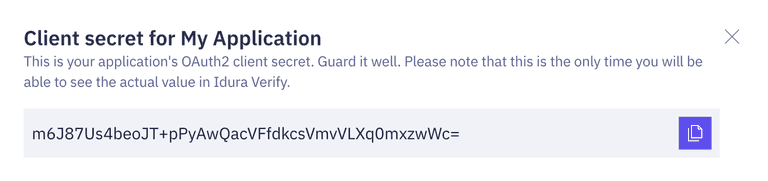
- If you're presented with a client secret, copy and save it in a secure location. Note that if you navigate away from this page without copying and saving the client secret, you will have to generate a new one.
- Your application settings will now display the Client ID / Realm. You will need to paste it in your code once ready to integrate.
Lost your client secret?
Client secrets are for server-side applications only. If you are building a Single-page application or a native mobile app, you cannot securely store a secret. Use PKCE instead.
If you lost your client secret or need to generate one, you can do so from your Application settings.
- Go to the OpenID Connect section of your Application settings.
- Toggle on Enable OAuth2 Code Flow and click Save.
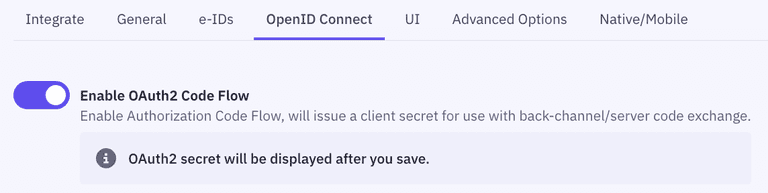
- Copy and save the generated client secret. Idura only stores the secret as a hashed value, meaning that once you navigate away from this page,
you won't be able to retrieve the raw value again. If you lose your client secret, you will have to generate a new one and update your code.
For maximum security in production, we recommend moving away from client secret authentication and replacing it with safer alternatives:
- Private key JWT authentication: A secure authentication method for traditional web applications based on asymmetric key cryptography.
- PKCE (Proof Key for Code Exchange): An extension to the Authorization Code flow that eliminates the need for a client secret entirely.
Learn more in our OpenID Connect security best practices guide.
What's next?
Your dashboard is configured and your API credentials are ready to use.
To be able to run test logins, you need to create a test user for the eID(s) you're planning to use. Note that you can't use your real, personal eID in a test environment.
Ready to test? Create your first test user.